Memory Extension
Memory Extension lets workloads move inactive memory pages out of their hot working set into compressed cached memory and disk-backed cold memory. It can help nodes absorb memory growth while keeping frequently accessed data in RAM.
Configure the node’s shared capacity on its NodeClass. For more control over how containers use that capacity, enable the optional Auto memory extension (NRI) enhancement on a NodePool and set a memory multiplier. Both settings belong to the same Memory Extension feature.
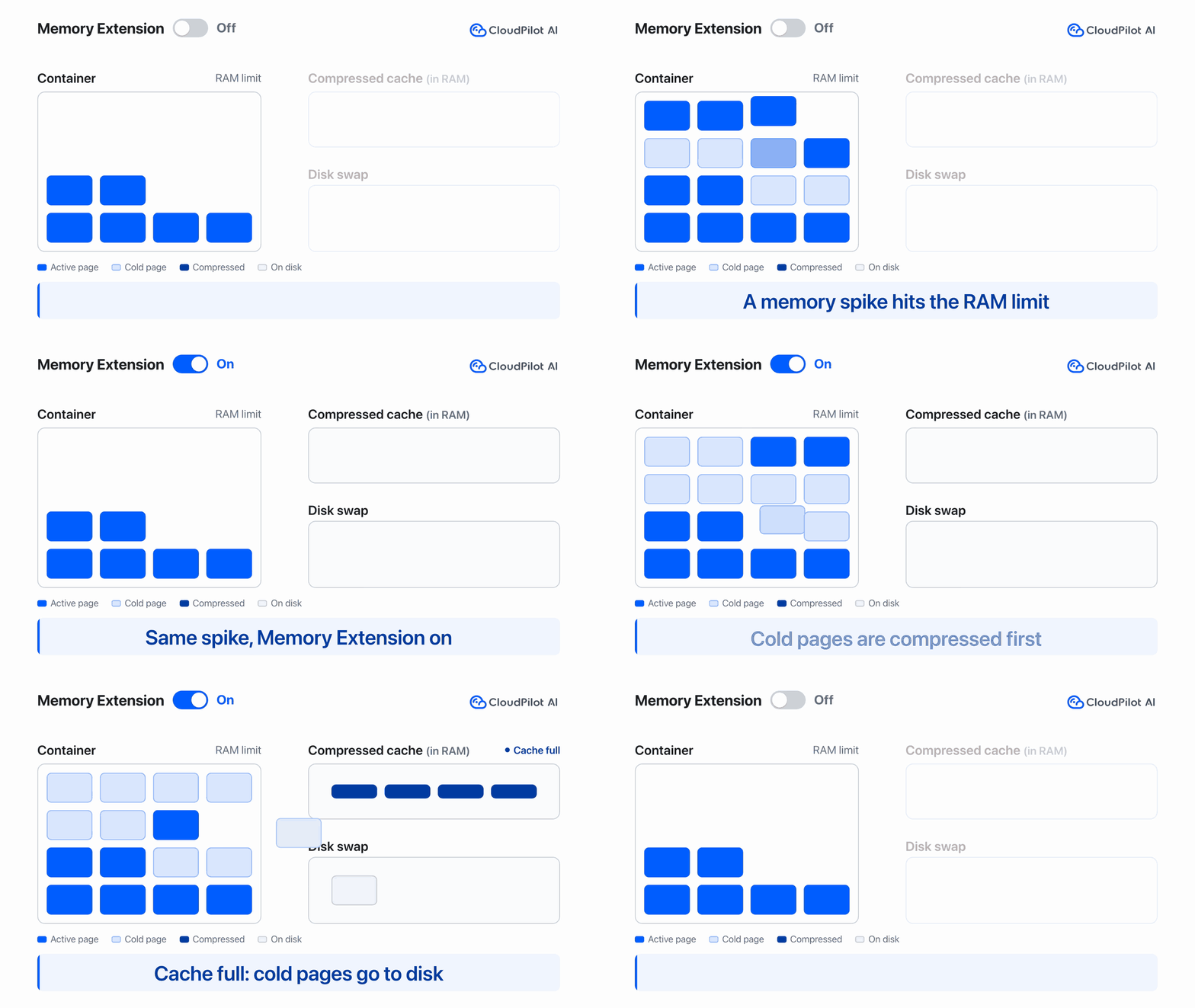
The animation is a conceptual illustration, not a measured benchmark. Without Memory Extension, a memory spike that exceeds the container’s RAM limit triggers an OOM kill. With it, cold pages enter the compressed cache first and move to the root disk when that cache is full. Normal requests, limits, and capacity planning still apply.
How Memory Extension works
Hot, cached, and cold memory
| Memory tier | Where it resides | Purpose |
|---|---|---|
| Hot memory | Physical RAM | Holds pages the application accesses frequently. |
| Cached memory | Compressed pages in RAM | Keeps reclaimed pages in a compressed cache to reduce disk I/O when they are accessed again. |
| Cold memory | Backed by the node’s root disk | Provides capacity for inactive pages outside the hot working set. |
The NodeClass configuration prepares cold-memory backing, enables the compressed cache, and configures kubelet’s LimitedSwap policy. Under memory pressure, the kernel can reclaim inactive pages; compressed pages can remain in the RAM cache, and pages can be written to the backing disk. Accessing a reclaimed page brings it back into the application’s working set.
Cached memory still consumes physical RAM. It is part of the cold-page storage mechanism, not a separate capacity amount to add to the NodeClass cold-memory target.
Memory Extension works best for workloads with a meaningful inactive set, such as caches, session data, sparse indexes, and long-lived Java objects. Continuously accessed or rewritten data needs hot memory and benefits less.
What the NRI enhancement adds
| Configuration | Scope | Effect |
|---|---|---|
| NodeClass Memory Extension | Each newly provisioned node | Creates shared cold-memory capacity and sets cached-memory and node safety options. Container cold-memory access follows kubelet policy. |
| NodePool Auto memory extension (NRI) | Eligible containers created on the pool’s nodes | Assigns each container a cold-memory allowance using the configured multiplier. |
NRI uses the capacity provided by the NodeClass. It calculates and applies a container’s allowance when that container is created, so applications do not need to request a quota through annotations. Installing the NRI component alone does not enable the multiplier; enable the policy on the NodePool as well.
For each supported regular application container:
baseline = positive memory limit, otherwise positive memory request
cold memory allowance = baseline x (multiplier - 1)
The allowance is rounded down to whole bytes. With a memory limit, the existing hot-memory limit plus the cold-memory allowance gives the combined configured ceiling:
| Container memory configuration | Multiplier | Hot-memory limit | Cold-memory allowance | Combined ceiling |
|---|---|---|---|---|
| request 512 MiB, limit 1 GiB | 1.5 | 1 GiB | 512 MiB | 1.5 GiB |
| request 512 MiB, limit 1 GiB | 2 | 1 GiB | 1 GiB | 2 GiB |
| request 1 GiB, no limit | 2 | No hard limit | 1 GiB | No hard limit |
For example, a 1 GiB memory limit with a 2x multiplier allows 2 GiB total: up to 1 GiB hot memory and 1 GiB cold memory. The multiplier does not change the Kubernetes request or limit, resize the node’s backing disk, or reserve that capacity for the container.
For a request-only container, the multiplier determines its cold-memory allowance and does not introduce a hot-memory or total-memory hard limit. A 1 GiB request with a 2x multiplier gets a 1 GiB cold-memory allowance, but total memory is not capped at 2 GiB.
Enable Memory Extension
Before configuring the feature, check the supported environments. Start with one non-critical NodePool and validate representative traffic before expanding the rollout.
Enable node capacity on the NodeClass
- Open the target cluster in CloudPilot AI, then go to Node Autoscaler > NodeClass.
- Create or edit an AWS NodeClass.
- In Image & OS, select an Amazon Linux 2023 image. Use nodes with at least 4 GiB of physical memory.
- In Metadata & add-ons, enable Memory Extension.
- Keep the defaults for an initial rollout, or adjust the capacity settings below.
- Save the NodeClass and use it in the target NodePool.
- Provision new nodes, or replace existing nodes through your normal availability and disruption controls.
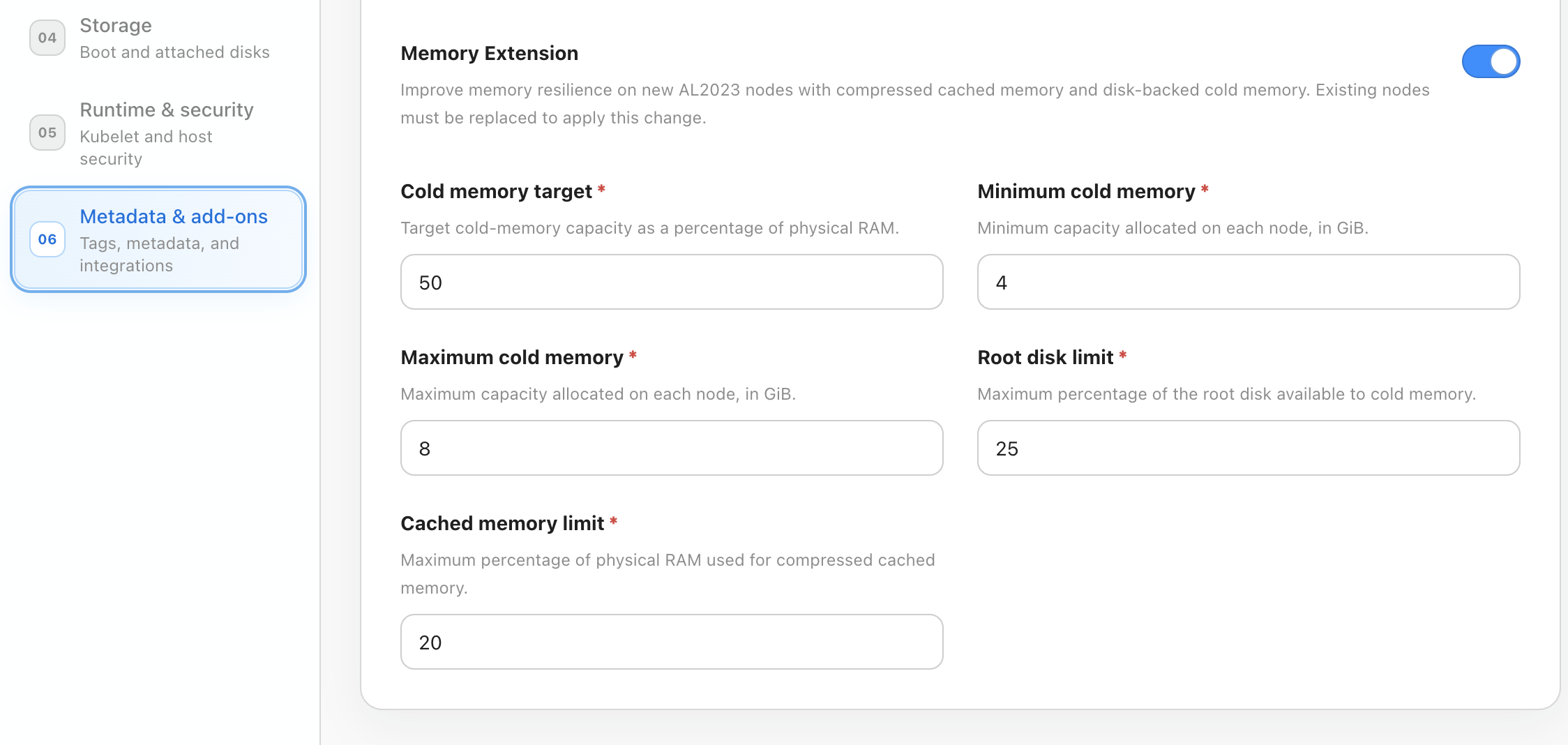
The screenshot shows an example configuration: a 50% cold-memory target, 4 GiB minimum, 8 GiB maximum, 25% root disk limit, and 20% cached-memory limit. These values are not the product defaults.
NodeClass options
The console applies these defaults when Memory Extension is enabled:
| Option | Default | Allowed range | Purpose |
|---|---|---|---|
| Cold memory target | 30% | 1-100% | Desired cold-memory capacity as a percentage of physical RAM. This is a target, not a guaranteed allocation. |
| Minimum cold memory | 2 GiB | 1-64 GiB | Smallest cold-memory allocation that may be activated on a node. |
| Maximum cold memory | 16 GiB | 1-64 GiB | Caps cold-memory capacity. Must be at least the minimum. |
| Root disk limit | 20% | 1-50% | Maximum share of the root disk available to cold memory. |
| Cached memory limit | 20% | 1-40% | Maximum share of physical RAM used for compressed cached pages. It is not reserved immediately. |
For each new node, Auto sizing calculates the RAM-based target, applies the minimum and maximum, and then applies the root disk limit and free-space headroom. CloudPilot AI preserves at least 10% of the root disk or 5 GiB, whichever is larger. If the minimum cold-memory capacity cannot be provided while preserving that headroom, Memory Extension is not activated on the node.
The reclaim policy is fixed to Conservative and is not an editable console option. It favors inactive-page reclaim while retaining safety margins for Kubernetes and the container runtime.
NodeClass changes apply to newly created nodes. Enabling, tuning, or disabling Memory Extension does not change running nodes in place; replace them to apply the updated configuration.
Enable NRI enhancement
After enabling node capacity, configure automatic container allowances on each NodePool that should use the enhancement:
- Open Node Autoscaler > NodePool, then create or edit the target AWS NodePool.
- Select the NodeClass where Memory Extension is enabled.
- In Capacity & Placement, select amd64 only for Architecture.
- In Add-ons, enable Auto memory extension (NRI).
- Set Memory multiplier and save the NodePool.
- Confirm that the NRI component is Ready on the target nodes, then create or roll out the workloads that should use the policy.
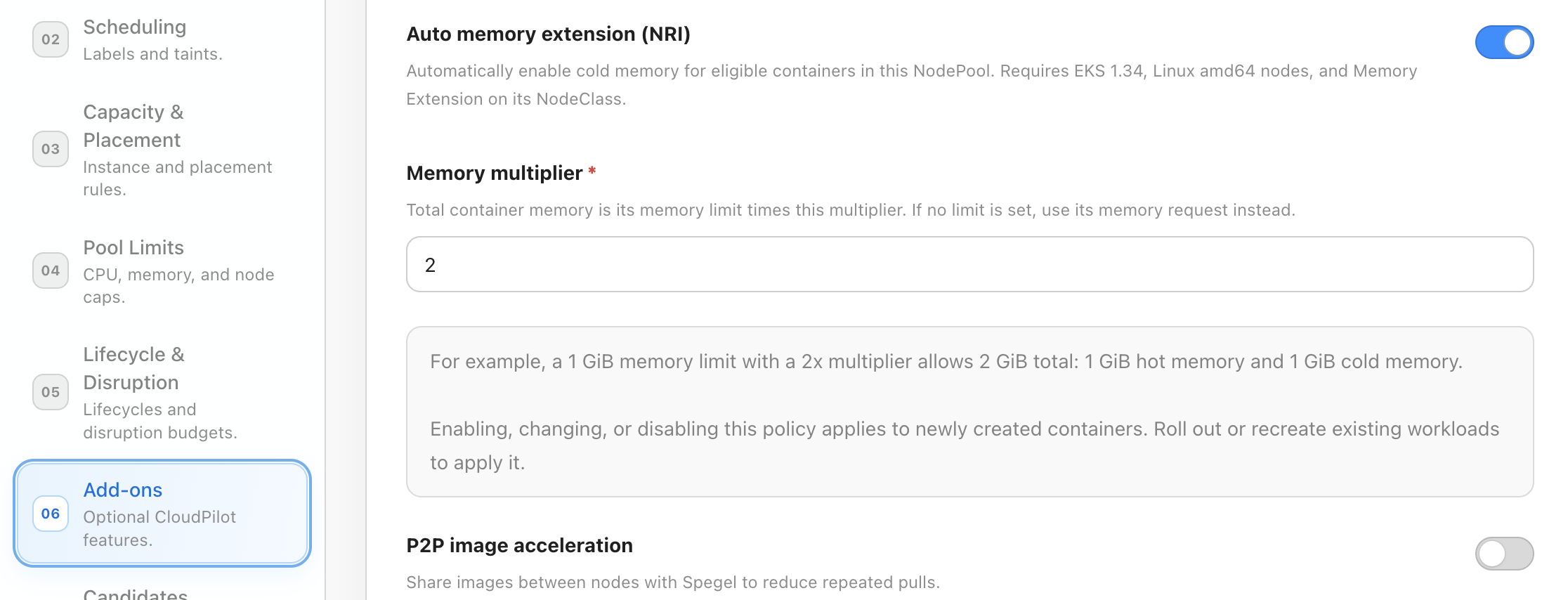
The screenshot uses a 2x multiplier. The multiplier defaults to 1.5 when first enabled; the allowed range is 1.001 to 10, with at most three decimal places. The multiplier field and its example are shown only while the switch is enabled.
Use a CloudPilot installation that includes the automatic NRI policy, admission webhook, and cloudpilot-nri-swap component. If they are missing, upgrade the cluster components through the normal upgrade workflow. The supported base installation includes the combined NRI configuration and observer component, which runs separately from Node Agent. Workload Autoscaler is not required.
The component is placed on enabled Linux amd64 nodes, rather than every node in the cluster. Its default per-node resource settings are 10m CPU request, 32 MiB memory request, and 128 MiB memory limit. These are scheduling settings, not measured runtime consumption.
Enabling, changing, or disabling the NRI policy applies to newly created containers after the node has synchronized the policy. Running containers retain their creation-time allowances. Roll out or recreate existing workloads to apply the change consistently.
Configure workloads
A supported Pod needs no NRI quota or opt-in annotation. Set normal Kubernetes resources and schedule it onto an enabled NodePool. For example, with a 2x policy, this container gets a 256 MiB hot-memory limit and 256 MiB cold-memory allowance:
apiVersion: apps/v1
kind: Deployment
metadata:
  name: memory-extension-example
spec:
  replicas: 1
  selector:
    matchLabels:
      app: memory-extension-example
  template:
    metadata:
      labels:
        app: memory-extension-example
    spec:
      nodeSelector:
        karpenter.sh/nodepool: memory-extended
      containers:
        - name: app
          image: busybox:1.36
          command: ["sh", "-c", "sleep 3600"]
          resources:
            requests:
              cpu: 100m
              memory: 128Mi
            limits:
              cpu: 500m
              memory: 256Mi
Replace memory-extended with your enabled NodePool name and add tolerations if that pool has taints. To use a request-only container, remove limits.memory; with the same 128 MiB request and 2x policy, its cold-memory allowance becomes 128 MiB, and it retains no hard memory limit.
The sleeping example demonstrates scheduling and allowance assignment. It does not allocate enough memory to demonstrate cold-memory use; validate that with representative application traffic.
To opt out a workload, add this annotation to its Pod template, then roll it out:
spec:
  template:
    metadata:
      annotations:
        cloudpilot.ai/nri-swap-disabled: "true"
Admission records regular container identities and request-only resource snapshots during Pod creation. Do not manually edit CloudPilot-generated annotations. Request-only Pods created before this admission support must be recreated to receive the snapshot.
Verify the configuration
For node capacity, confirm that the replacement node is Ready and that Memory Extension was activated. Monitor root disk headroom, node MemoryPressure and DiskPressure, application latency, and Pod restarts or OOM events.
For NRI, confirm that a Ready component Pod is on the same node as the application and that the application has a supported QoS class:
kubectl -n cloudpilot get daemonset cloudpilot-nri-swap
kubectl -n cloudpilot get pods \
  -l app.kubernetes.io/name=cloudpilot-nri-swap -o wide
kubectl -n <namespace> get pod <pod-name> -o wide
kubectl -n <namespace> get pod <pod-name> \
  -o jsonpath='{.status.qosClass}{"\n"}'
kubectl -n <namespace> describe pod <pod-name>
For direct allowance verification, forward the observer port of the component Pod on that node:
kubectl -n cloudpilot port-forward pod/<nri-pod-name> 9091:9091In another terminal:
POD_UID=$(kubectl -n <namespace> get pod <pod-name> \
  -o jsonpath='{.metadata.uid}')
curl -fsS "http://127.0.0.1:9091/v1/swap?pod_uid=${POD_UID}"
For the 256 MiB limit example with a 2x policy, expect managed: true, expected_max_bytes: 268435456, max_bytes: 268435456, and multiplier_milli: 2000. current_bytes is actual cold-memory use and can be zero when the workload does not need it. An empty managed list can indicate a skipped Pod or that a component on the wrong node was queried.
The diagnostic API and resource names retain swap for compatibility; the console describes this capacity as cold memory. Generated admission annotations alone do not prove that an allowance was applied. If verification fails, check the actual NodePool, component readiness, Pod creation time, and eligibility rules. Pod warnings can include NRISwapObserverUnavailable, NRISwapReadbackFailed, and NRISwapLimitMismatch.
Change or disable the feature
| Change | When it applies | Required rollout |
|---|---|---|
| NodeClass capacity or cached-memory settings | Newly provisioned nodes | Replace or rebalance existing nodes. |
| NodePool NRI switch or multiplier | New containers after policy synchronization | Roll out workloads; running containers keep their existing allowances. |
| Pod opt-out or request-only admission metadata | Newly created Pods | Recreate the Pods. |
To disable the enhancement, turn off Auto memory extension (NRI) on the NodePool, save it, and roll out affected workloads. To disable Memory Extension completely, first disable NRI on every dependent NodePool, then turn off Memory Extension on the NodeClass and replace the nodes. Plan sufficient replicas, capacity, and disruption budgets for both rollouts.
For an older installation that manually deployed cloudpilot-nri-memory-qos and cloudpilot-nri-swap-observer, remove those old DaemonSets before installing the combined component. Current Helm upgrades manage the old chart resources.
Terraform and OpenTofu
The upcoming provider 0.7.0 and EKS module 0.6.0 updates expose node capacity as
nodeclasses[].memory_extension and the NRI enhancement as
nodepools[].nri_swap_policy for Server v1.36.4. Reusable module templates expose
the same fields. See the
Terraform module example
for release status and HCL.
Set memory_extension.enabled = true to prepare newly provisioned AL2023 nodes.
On a compatible pool, nri_swap_policy.enabled = true and
memory_limit_multiplier = 2 enable a 2x container allowance. The multiplier must
be greater than 1 and at most 10, with at most three decimal places. Omitted or
null policy objects preserve remote values. In a non-empty policy, null child
fields also preserve remote values. Use enabled = false to disable a feature
while retaining its other configuration, or an empty memory_extension = {}
or nri_swap_policy = {} to reset and disable it. Empty cold_memory and
cached_memory objects restore their server defaults. Objects whose optional
children are all null are treated as empty objects.
The dependency order, supported environments, node replacement, and workload
rollout requirements in this guide also apply to Terraform. These EKS Memory
Extension policies are not available through the GKE module.
Server v1.36.4 fixes Kubernetes reservations at 100m CPU and 256 MiB memory while
Memory Extension is enabled. Leave Terraform’s extra_cpu_allocation_mcore and
extra_memory_allocation_mib omitted or null, or set them to 100 and 256
respectively. Other explicit values conflict with the feature and are rejected.
When disabling Memory Extension, omit these fields or set them to null for
that apply so the server can restore the reservations saved before enablement.
Limits and operating guidance
Supported environments
| Capability | Requirements |
|---|---|
| NodeClass Memory Extension | Amazon EKS, CloudPilot-managed AWS EC2NodeClass, AL2023, and nodes with at least 4 GiB of physical memory. |
| NRI enhancement | The requirements above, plus EKS 1.34, Linux amd64, containerd NRI, cgroup v2, and compatible CloudPilot components. |
Do not enable Memory Extension on nodes smaller than 4 GiB. The system and safety reservations consume a large share of those nodes. The NRI enhancement currently does not support other Kubernetes versions, ARM nodes, Windows, GKE, or AKS.
Supported Pods and containers
The NRI policy applies to regular application containers in Burstable Pods with a positive memory limit or request. QoS is evaluated for the whole Pod. For a single regular application container and a 2x multiplier:
| Memory request / limit | CPU request / limit | Pod QoS | NRI behavior |
|---|---|---|---|
| 256 MiB / absent | 100m / 500m | Burstable | 256 MiB cold-memory allowance based on request; no hard memory limit. |
| 128 MiB / 256 MiB | 100m / 500m | Burstable | 256 MiB cold-memory allowance based on limit. |
| absent / 256 MiB | 100m / 500m | Burstable | 256 MiB cold-memory allowance; Kubernetes defaults the missing memory request to the limit. |
| absent / absent | 100m / 500m | Burstable | Skipped: no memory baseline. |
| absent / absent | absent / absent | BestEffort | Skipped. |
| 256 MiB / 256 MiB | 100m / 500m | Burstable | 256 MiB cold-memory allowance. Equal memory request and limit alone do not imply Guaranteed QoS. |
| 256 MiB / 256 MiB | 100m / 100m | Guaranteed | Skipped. |
The automatic policy also skips init containers (including native sidecars declared as init containers), ephemeral containers, opted-out Pods, and Pods in kube-system, kube-public, kube-node-lease, or cloudpilot. Containers on nodes outside enabled NodePools receive no automatic NRI allowance. Without the enhancement, container cold-memory access continues to follow kubelet policy.
Shared capacity and scheduling
A container’s cold-memory allowance is a usage ceiling, not reserved capacity. The sum of container allowances can exceed the node’s available backing capacity. The multiplier does not guarantee that every container can use its full allowance simultaneously.
Memory Extension does not add physical RAM or change Pod scheduling requests. Keep total requests within Node Allocatable, and set limits above the expected hot working set. The feature does not guarantee freedom from OOM or eviction: a container can exhaust its allowance, node cold-memory backing can fill up, or hot working sets can exceed RAM.
NodeClass Memory Extension applies safety reservations for the operating system, Kubernetes, and container runtime, so Node Allocatable may change after node replacement. The current policy uses a 512 MiB available-memory threshold, reserves 256 MiB and 100m CPU each for Kubernetes and system services, and protects Kubernetes and container runtime services under pressure. Disabling the feature restores previously managed NodeClass settings for future nodes.
NRI readiness gates initial scheduling. It does not guarantee allowances if the component later becomes unavailable or a Pod bypasses normal scheduling. Policy delivery also requires healthy cluster connectivity; saved console settings alone do not prove that an offline node has received them.
Capacity tuning and performance
Use the default NodeClass settings for an initial rollout. On 4-8 GiB nodes, keep the 2 GiB minimum. Increase the cold-memory target or maximum only after confirming a large inactive set, sufficient disk capacity, healthy nodes, and acceptable application latency. Lower the target or maximum when disk headroom is limited, cold-data access is slow, or workloads continuously scan or rewrite memory.
Increase the cached-memory limit only when compression provides a clear benefit and active workloads still have enough RAM. A larger cold-memory target or multiplier does not imply the same increase in usable workload memory.
Cold memory shares the root disk with the operating system, container images, writable layers, logs, and temporary files. Keep headroom and sufficient throughput and IOPS. Image Accelerator can operate alongside Memory Extension, but both can consume node storage capacity.
Validate with real traffic and monitor:
- node Ready, MemoryPressure, and DiskPressure conditions;
- root disk usage, throughput, IOPS, and latency;
- cold-memory use and Pod restart, OOM, eviction, or rescheduling events;
- application P95/P99 latency and throughput; and
- Java garbage-collection pauses where applicable.
Benefits are smaller for frequently rewritten, continuously scanned, or poorly compressible memory. Preserve normal capacity headroom and application resilience even when Memory Extension is enabled.