Workload Groups and CronJobs
Workload Autoscaler (WA) can calculate CPU and Memory recommendations for native Kubernetes CronJobs and for Workload Groups that select related Pods. Once recommendations are ready, OnCreate applies them to newly created Pods. Existing running Pods keep their resources.
Use a native CronJob target for scheduled Kubernetes Jobs. Use a Workload Group for standalone Jobs, bare Pods, or Pods created by a custom controller that should share one optimization identity. All names and selectors in the examples below are illustrative.
Prerequisites
Version requirement: Workload Group and CronJob support requires CloudPilot v1.23.0 and later. Earlier releases do not include this support.
Use compatible WA, Agent, management server, and Console releases that include Workload Group and CronJob support. Cluster setup must include the workloadgroups.evpa.cloudpilot.ai CRD, the required WA and Agent permissions for Workload Groups, CronJobs and Jobs, and WA membership metrics collection.
An automatic image upgrade alone does not install missing CRDs or grant new Kubernetes permissions. For an existing cluster, rerun the WA installer for CloudPilot v1.23.0 or later using the command generated by the Console. Rerunning an older installer does not add the missing feature. Verify the installed resources and permissions before configuring a target; a visible Console page does not prove cluster readiness.
kubectl get crd workloadgroups.evpa.cloudpilot.ai
kubectl get workloadgroups.evpa.cloudpilot.ai -A
kubectl get cronjobs.batch -A
These commands check your Kubernetes access. If observation is unavailable, also check the WA and Agent service accounts’ permissions and metrics collection. Missing permissions or metrics are not evidence that a workload has no activity.
Choose a target and mode
| Target | Membership | Recommendation history |
|---|---|---|
| Native CronJob | Real controller ownership: Pod → Job → CronJob | Job mode; observed execution time across runs |
| Workload Group, Job mode | Explicit Pod label selector in one namespace | Observed execution time across related runs |
| Workload Group, Continuous mode | Explicit Pod label selector in one namespace | Ordinary wall-clock history for long-running Pods |
A Workload Group selects Pod labels, not Job or custom-resource labels. Add stable labels to the Pod template emitted by your Job or custom controller. Group only Pods that represent comparable work and have compatible container names and resource needs.
Membership follows these rules:
- Deployment, StatefulSet, and DaemonSet Pods remain on their native WA path.
- CronJob ownership takes precedence over a Workload Group selector; do not create an extra Group for a native CronJob.
- If an eligible Pod matches multiple Workload Groups, it is excluded from all of them and reported as a conflict. Narrow overlapping selectors before enabling optimization.
- Names do not establish ownership. WA follows Kubernetes controller references to identify a CronJob and its executions.
Create a Workload Group in the Console
- Open your cluster, then Workload Autoscaler → Workload Groups.
- Select Create Workload Group.
- Enter a Kubernetes Name and Namespace. They identify the namespaced CR and cannot be changed after creation.
- Choose Job for run-to-completion work, or Continuous for long-running Pods.
- Configure a nonempty Pod label selector that matches the intended Pods in that namespace, then save.
- Check the Group’s matched Pods and observation status. A Group definition alone does not create an AutoscalingPolicy or enable optimization.
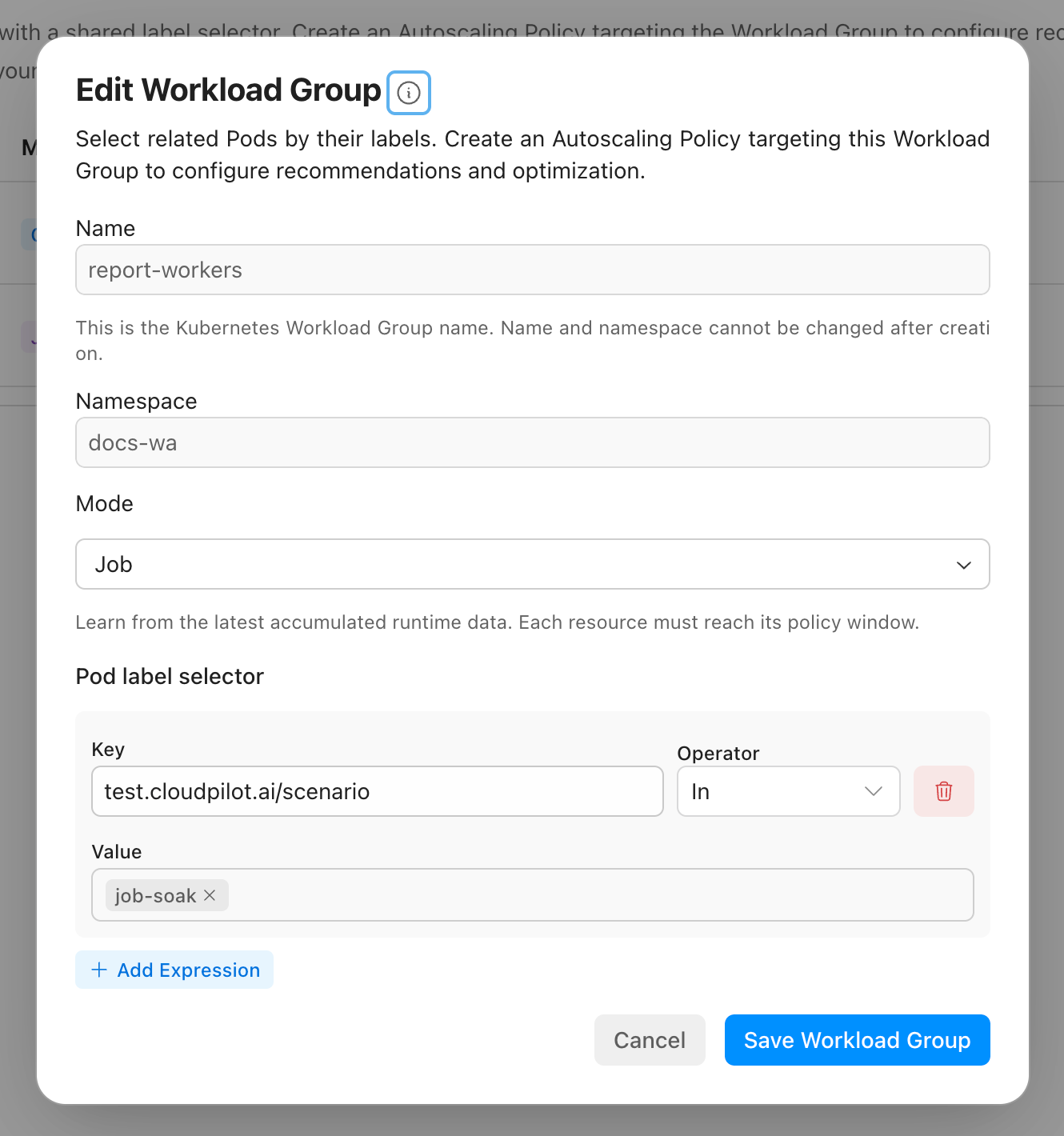
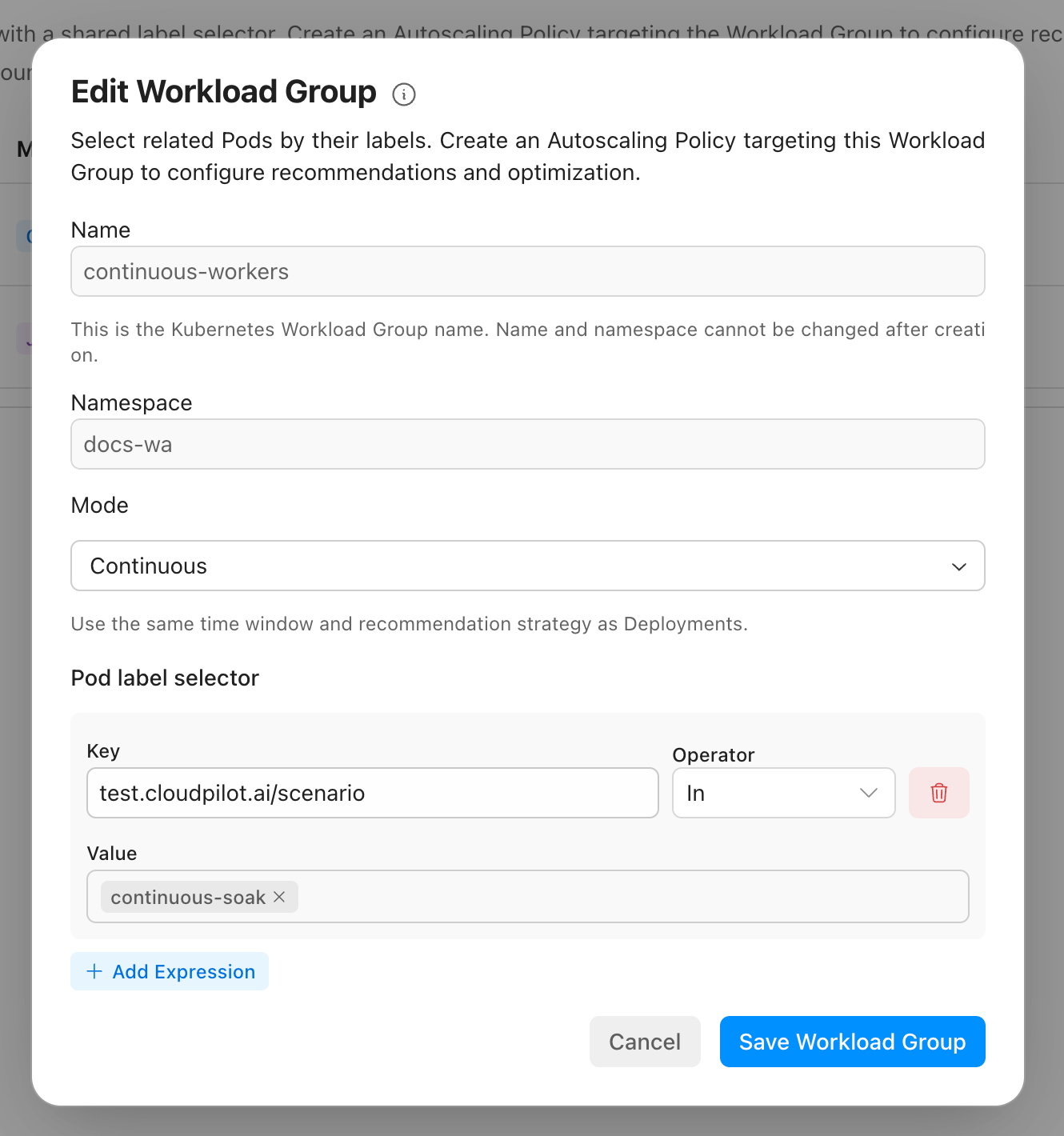
The following screenshots use illustrative local test workloads.
Job mode accumulates observed execution time across matching Jobs:
Continuous mode uses the same time window and recommendation strategy as Deployments:
You can also define a Group with Kubernetes YAML:
apiVersion: evpa.cloudpilot.ai/v1alpha1
kind: WorkloadGroup
metadata:
  name: report-workers
  namespace: batch
spec:
  groupId: report-workers
  configurationVersion: 1
  semanticRevision: 1
  mode: job
  source:
    type: podSelector
    podSelector:
      matchLabels:
        app: report-worker
Create the namespace and matching workload separately. This Group does not create Pods.
| Field | Meaning |
|---|---|
metadata.name, metadata.namespace | Namespaced Kubernetes identity. Use these values in the AutoscalingPolicy target. |
spec.groupId | Required nonempty Group identifier; it does not replace the resource UID as the history identity. |
spec.configurationVersion | Positive configuration revision, initially 1. |
spec.semanticRevision | Positive history revision, initially 1. Increment when changing which work should share recommendation history. |
spec.mode | job or continuous. Both use admission-only resource application. |
spec.source.type | podSelector. |
spec.source.podSelector | Nonempty Kubernetes matchLabels and/or matchExpressions selector. Supported operators: In, NotIn, Exists, DoesNotExist. |
When managing YAML directly, increment configurationVersion for configuration updates and semanticRevision when changing selector semantics. History is isolated by the Kubernetes resource UID and semantic revision. Changing mode or semantic revision resets recommendation state; deleting and recreating the resource starts a new UID. A selector edit alone does not automatically isolate old history in the WA controller.
Assign an AutoscalingPolicy to a Group
- Open Workload Autoscaler → Autoscaling Policy and create a policy.
- Select an existing Recommendation Policy with suitable CPU and Memory history windows.
- Add a TargetRef with Kind = Workload Group, and the Group’s Name and Namespace.
- Select the managed resources and Limit Policies. Use Off to observe recommendations first, or OnCreate to apply ready recommendations to future Pods.
- Keep Startup Boost disabled, runtime optimization disabled, and On Policy Removal = Off. Enable the policy and save.
- Open Optimization to inspect the effective policy, recommendations and workload state. Enable workload optimization there if it is paused, and verify that no annotation overrides the setting.
This illustrative local policy targets Groups named *-workers in docs-wa and applies recommendations when new Pods are created.
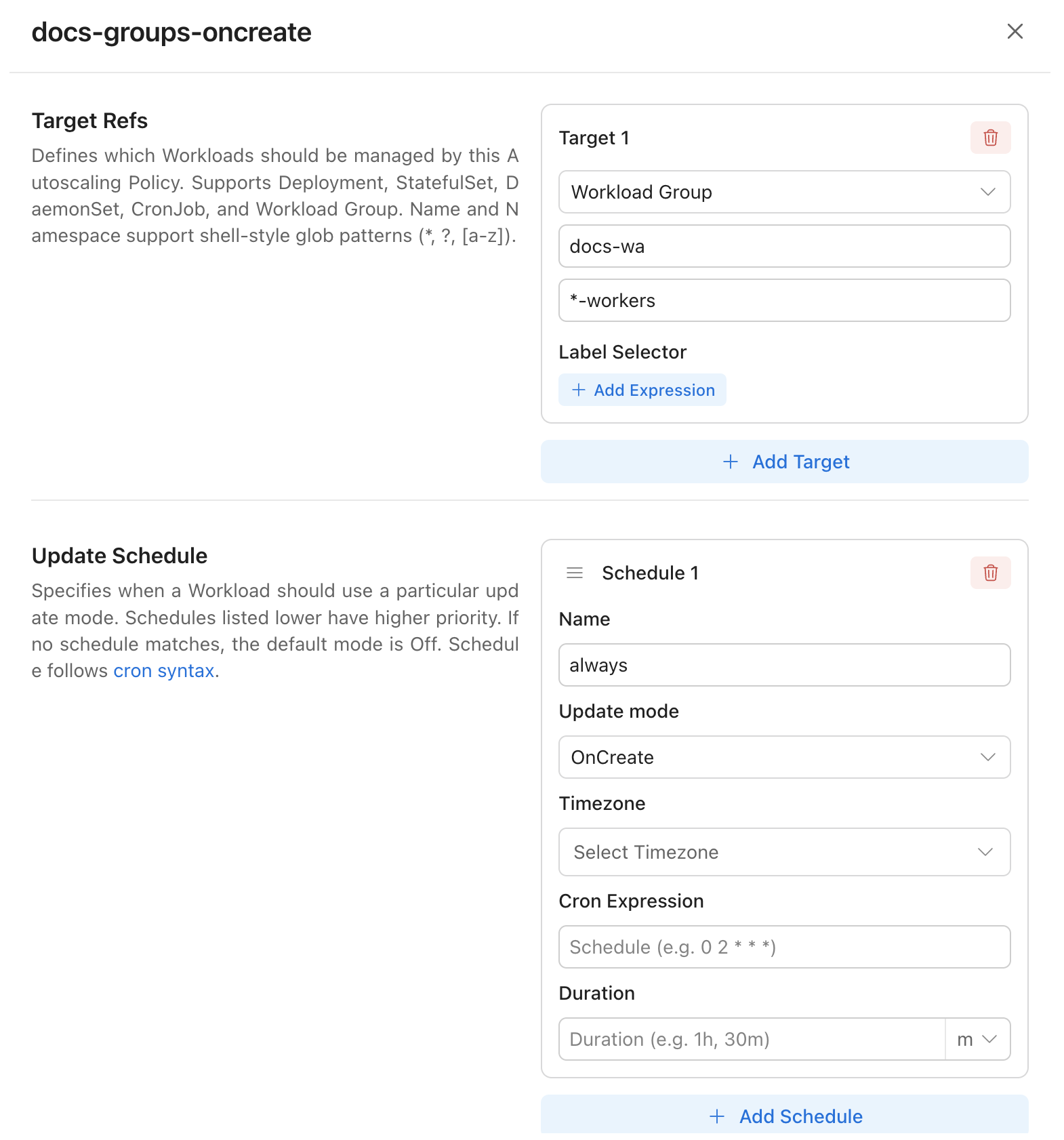
The following policy targets the illustrative Group. The referenced balanced RecommendationPolicy must already exist; inspect its saved settings before use. AutoscalingPolicy is cluster-scoped, so its target carries the workload namespace.
apiVersion: evpa.cloudpilot.ai/v1alpha1
kind: AutoscalingPolicy
metadata:
  name: report-workers-oncreate
spec:
  recommendationPolicyName: balanced
  targetRefs:
    - apiVersion: evpa.cloudpilot.ai/v1alpha1
      kind: WorkloadGroup
      name: report-workers
      namespace: batch
  updateResources:
    - cpu
    - memory
  updateSchedule:
    - name: always
      mode: oncreate
  limitPolicies:
    cpu:
      keepLimit: true
    memory:
      keepLimit: true
  disableRuntimeOptimization: true
  onPolicyRemoval: "off"
An AP TargetRef’s labelSelector filters labels on the WorkloadGroup object, while spec.source.podSelector selects member Pods. They serve different purposes. Normal policy priority and target matching still apply.
Configure a native CronJob
CronJobs do not need a Workload Group definition. WA follows each Job back to its CronJob and uses that CronJob as the recommendation target across executions.
- Open Workload Autoscaler → Autoscaling Policy and create a policy referencing an existing RecommendationPolicy.
- Add a TargetRef with Kind = CronJob, the CronJob Name, and its Namespace.
- Choose Off for observation or OnCreate for future Pod admissions. Keep Startup Boost and runtime optimization disabled, and On Policy Removal set to Off.
- Enable the policy. Open Optimization, filter for CronJob, and check the effective policy and observed history.
- After recommendations are ready and workload optimization is enabled, inspect a Pod from a subsequent scheduled execution. Previously created Pods and the CronJob’s Job template are not rewritten.
This illustrative local policy targets the native CronJob docs-wa/nightly-report with an OnCreate update schedule.
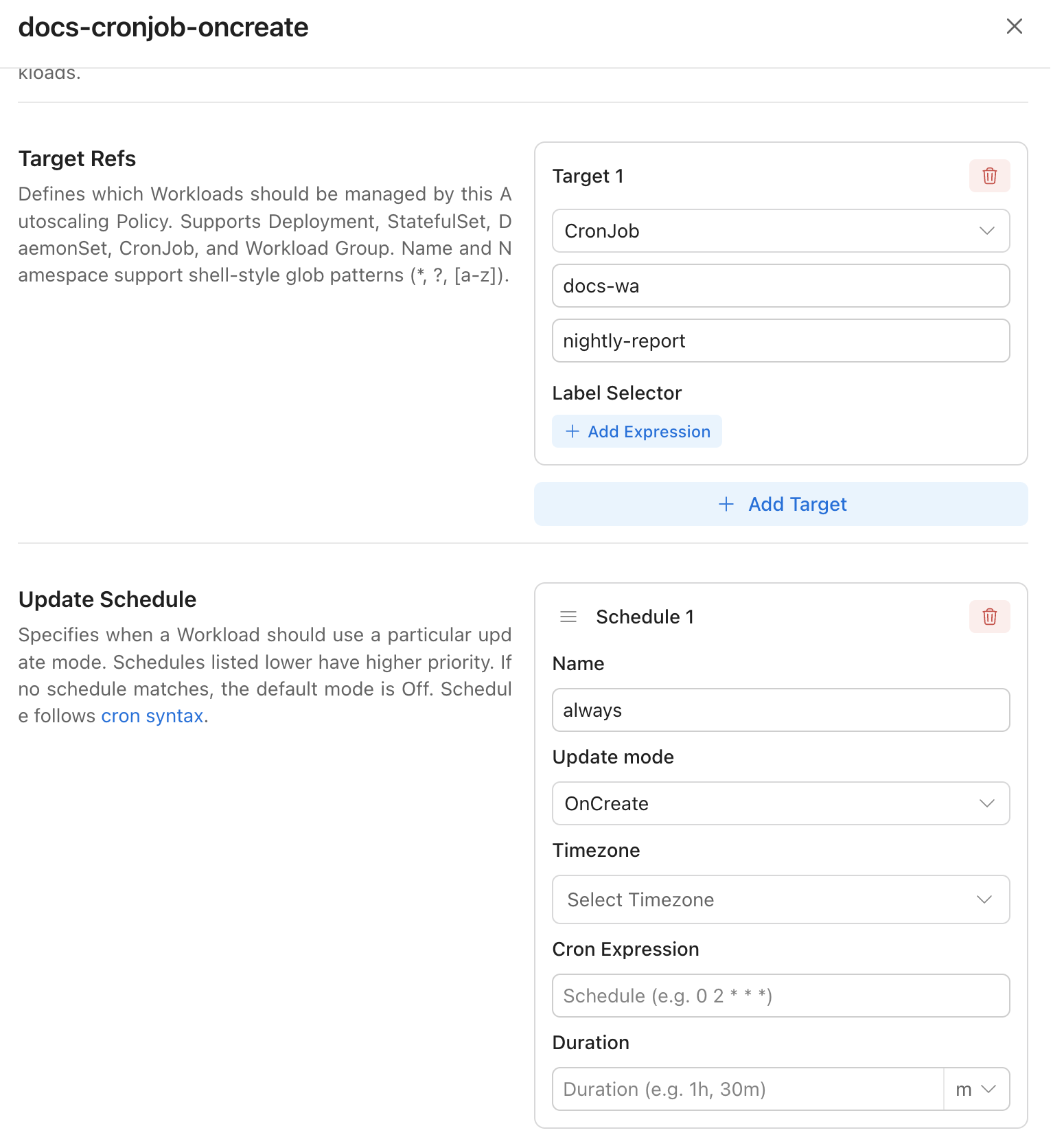
To adapt the policy example above for a native CronJob, replace its TargetRefs with:
targetRefs:
  - apiVersion: batch/v1
    kind: CronJob
    name: nightly-report
    namespace: batch
The CronJob must already exist. TargetRef selectors match labels on the CronJob itself, not labels on the Job or Pod template. The Kubernetes CronJob schedule controls when executions start; the AP update schedule controls when WA may mutate newly admitted Pods. These schedules are independent.
Understand Job history and readiness
For CronJobs and Job-mode Groups, a RecommendationPolicy’s CPU and Memory history windows mean observed execution time, not elapsed time since configuration. Idle time between executions and gaps without valid metric observations do not count.
For example, an illustrative 1h history requirement can accumulate across multiple short executions. Waiting one hour while no Jobs run does not satisfy it. WA selects recent valid execution intervals and calculates a time-weighted percentile. Concurrent replicas within one execution are max-aggregated per container rather than counted as independent copies of runtime.
Both CPU and Memory observation windows must be satisfied for the required containers, even if the controller’s initial data-window check is disabled. Readiness is reevaluated as policies and available history change. Short Jobs without enough valid observations can remain in the collecting state.
History is bounded by actual metrics retention, resource creation time, and the controller’s history lookback. Continuous-mode Groups use ordinary wall-clock history and the configurable initial onboarding gate instead.
Verify the result
Use the Workload Groups page for Group configuration and membership. Use Optimization for both Groups and CronJobs to inspect resource recommendations, effective policies, application state, and charts. Job-mode details expose observed CPU/Memory window progress; the optional Running periods chart shows observed executions rather than promising a complete execution audit.
Check readiness and resource recommendations
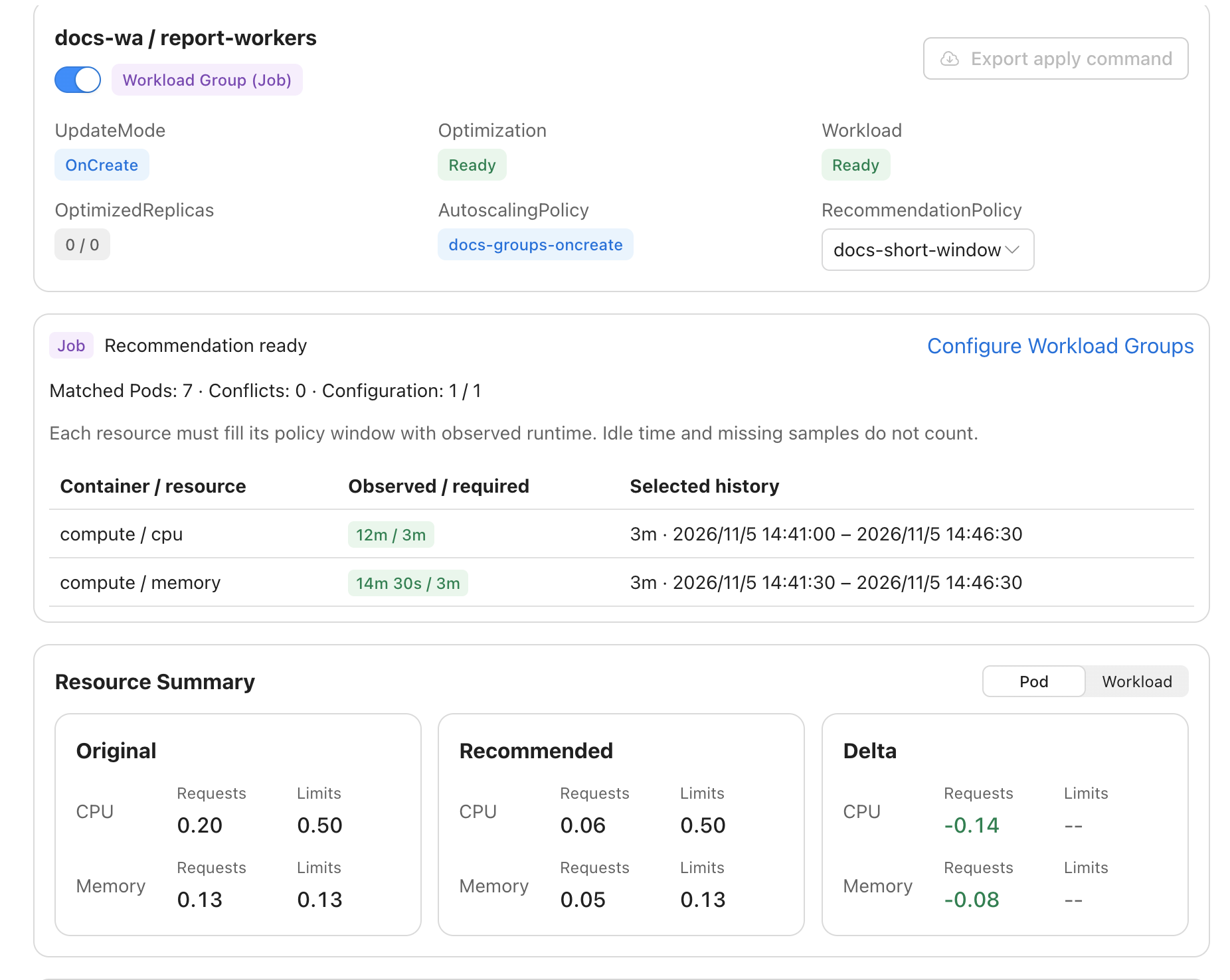
Open the target in Optimization. Check its effective AutoscalingPolicy, RecommendationPolicy, update mode, and readiness. For a Job-mode Group, inspect each container’s observed CPU and Memory duration against its required window, then compare the original and recommended resources.
The screenshots below use illustrative local test workloads and a short 3m history window for demonstration. Choose CPU and Memory windows appropriate to your workload rather than copying the test setting. OptimizedReplicas reflects current Pods; 0 / 0 between executions does not mean recommendation history is empty.
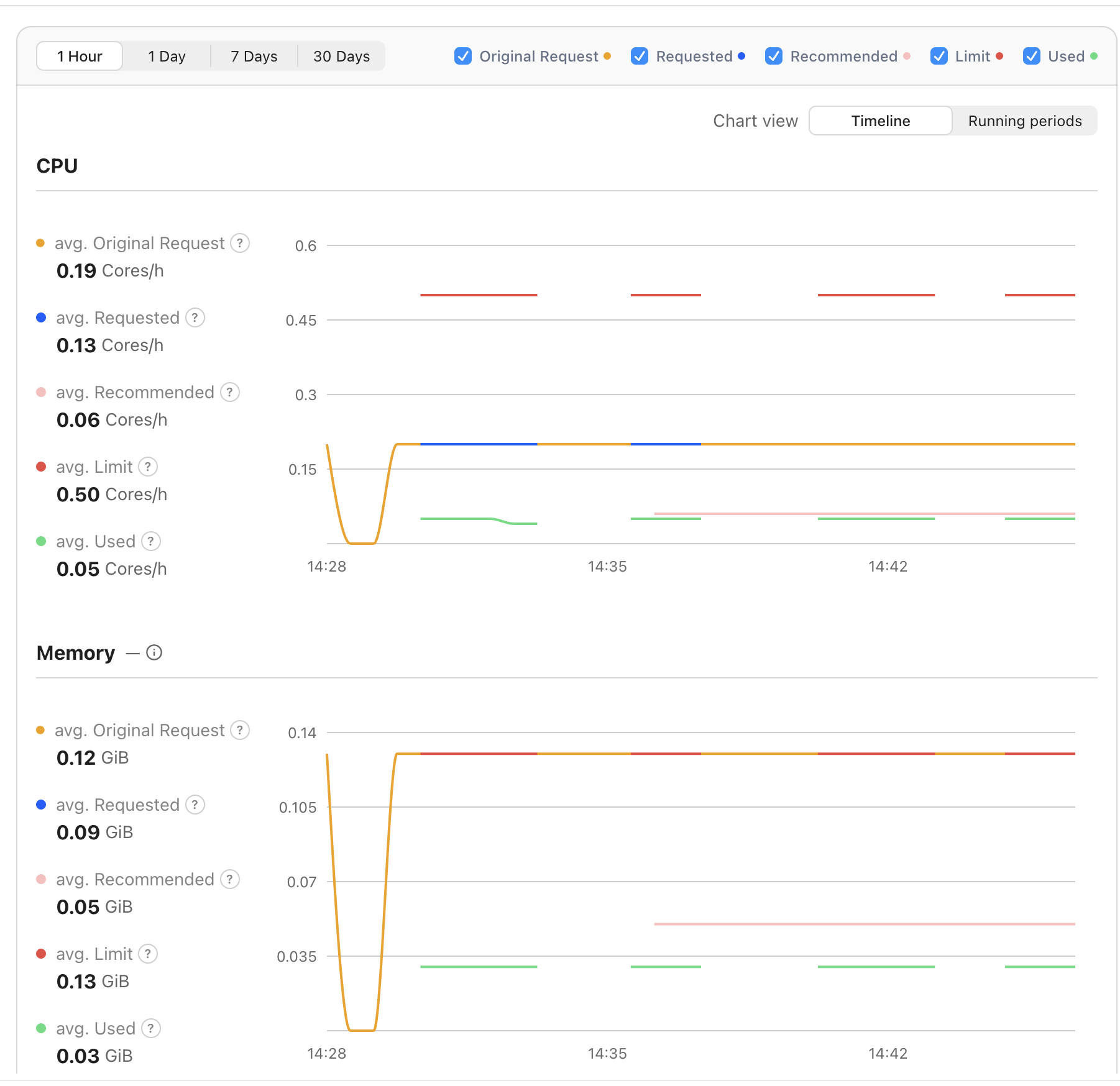
Compare resources on the timeline
Use Timeline to compare original requests, admitted requests, recommendations, limits, and usage over wall-clock time. A ready recommendation applies only to future Pod admissions in OnCreate mode; existing Pods can retain their original requests.
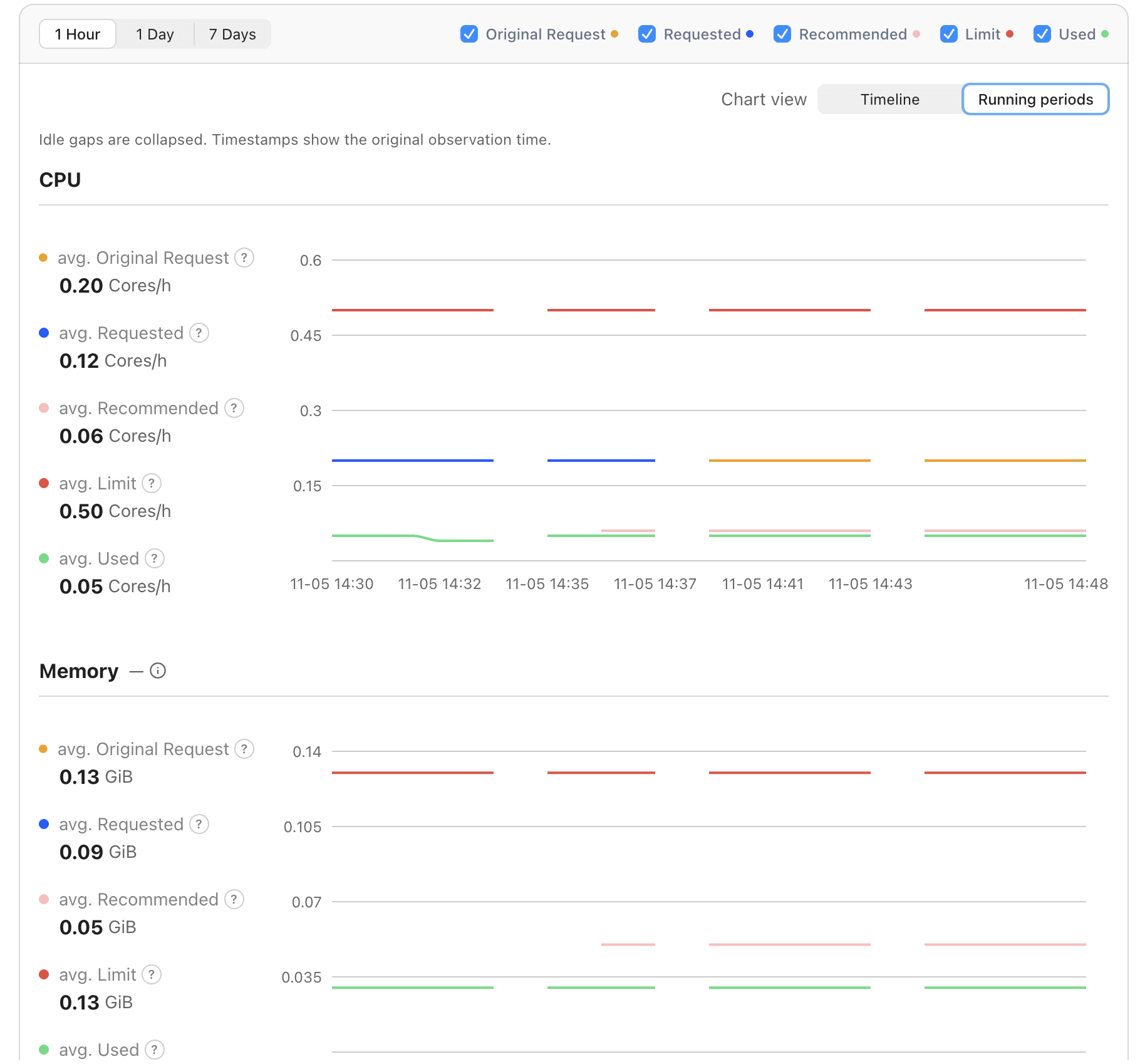
Inspect observed running periods
Switch Chart view to Running periods to compare observed execution intervals with idle gaps collapsed. Timestamps retain the original observation time. This view helps explain how Job history accumulates across runs; it is not a complete execution audit.
Verify cluster resources
For a Group, inspect the CR and its generated APC:
kubectl -n batch get workloadgroup report-workers -o yaml
kubectl -n batch get autoscalingpolicyconfigurations
Check Group status.observedConfigurationVersion, matchedPodCount, conflictPodCount, lastObservedAt, and the ConfigurationReady, Observing, and RecommendationReady conditions. status.apcRef.name identifies the generated APC. For Job-mode APCs, status.observedResourceWindows records collected and required observed seconds per container and resource.
Before expecting a resource change, confirm all of the following:
- The target matches an enabled AP with an existing RecommendationPolicy; the workload’s effective update mode is OnCreate and workload optimization is enabled.
- Membership is unambiguous, metrics are available, and the current recommendation is ready.
- The target does not have
evpa.cloudpilot.ai/disable-proactive-update: "true". This annotation also blocks OnCreate mutation. - A new Pod is admitted after readiness. Compare its resources with the recommendation and applicable Limit Policy, then check application health.
If a Group has zero matches, check its namespace, actual Pod labels, and native ownership exclusions. For conflicts, remove selector overlap. For missing recommendations, check the effective AP/RP, optional feature permissions, membership metrics, and observed CPU/Memory windows before reducing a history requirement.
Current limitations and lifecycle
| Capability | CronJob and Workload Group support |
|---|---|
| CPU / Memory recommendations and Limit Policies | Supported with compatible metrics and policies |
| Off / OnCreate | Supported; Off can continue recommendation collection |
| ReCreate / InPlace | Unsupported for both Group modes and native CronJobs |
| Startup Boost / JVM heap optimization / OOM auto-recovery | Unsupported for these targets |
| Running Pod or controller-template resource changes | Not performed by this admission-only path |
| On Policy Removal | Must be Off; no automatic restoration of already admitted Pods |
These restrictions apply to the entire AP if any TargetRef is a CronJob or Workload Group. Use separate policies when native Deployments, StatefulSets or DaemonSets need broader update modes.
Pause future application by selecting Off or disabling workload optimization; recommendations can continue. Removing a policy or deleting a Group does not restore resources on already admitted Pods. Before deleting a Group in the Console, disable its workload optimization and wait for cluster synchronization. Deleting a Group definition does not delete its member Pods or their source controllers. Stored metrics expire according to retention. Review shared AP targets before deleting a policy used by other workloads.
RecommendationPolicy overrides belong on the CronJob or WorkloadGroup metadata, not arbitrary member Pods. The evpa.cloudpilot.ai/recommendation-policy annotation takes precedence over the Console-managed label and must reference an existing policy. See Workload Configuration.